Print resolution check
Image Resolution for Printing
A photo needs about 300 pixels for every inch of the printed image — 2,400 × 3,000 pixels for an 8 × 10. Under that, the print does not fail, it softens: fine texture disappears first, then edges. Large-format prints read from further away and need fewer pixels per inch. Enter the print size and your file's pixel count below, and this page tells you whether the file clears the bar, what it would need, and how far one upscale goes.
At 300 ppi
Pixels needed on the long edge
1,024 px file4 × 6 in
8 × 10 in
A4
16 × 20 in
Updated 2026-10-28 · Free, no account · Nothing is uploaded
The check
Your file against a print size
Nothing is uploaded. The numbers update as you type.
Confirm the figure with your printer — labs quote different numbers for canvas and banner work.
Your file's pixels
Dimensions are read in the browser; the file never leaves your device.
This example file is short of 8 × 10 — here is why.
Result
Verdict
Short
102.4 ppi against a 300 ppi target at 8 × 10 in.
This size needs more pixels than the file has.
- Required pixels
- 2,400 × 3,000
- Your effective resolution
- 102.4 ppi
- Largest sharp print
- 3.4 × 3.4 in
- Upscale needed
- 4×
Your file will be cropped to fill: 20% of the long edge is discarded.
What this means
At 8 × 10 inches your 1,024 × 1,024 file lands at 102.4 ppi — Short for a 300 ppi target.
Fine texture and small type are the first things to go; the file does not look broken, it looks soft.
Retyping 300 DPI into the file will not change this — the pixel count is what the printer uses.
One 4× pass reaches 4,096 × 4,096 pixels; anything larger means printing at 13.7 × 13.7 in or smaller.
How this print resolution check works
The arithmetic behind the answer is one formula, and it is the same one a print lab uses when it opens your file.
Pixels needed = print size in inches × target pixels per inch.
Your effective resolution = your pixels ÷ the same inches.
The verdict compares the second number with the first: at or above the target is sharp, 75–99% of the target is marginal, below 75% is short. For a non-square print the check uses the weaker of the two sides, because a file that is wide enough on one axis and short on the other still shows softness — and the crop that follows only makes the deficit worse.
Two conventions matter here. The first is that files store pixels, not print resolution: the DPI value written in a JPEG is a label that tells a printer how large to place the pixels, and changing it without resampling leaves the detail exactly where it was. That is why a 72-DPI tag on a 6,000-pixel photo is harmless, and a 300-DPI tag on a 600-pixel graphic is a promise the file cannot keep. The second is bleed: commercial printers usually want the artwork to extend past the trim edge, commonly 0.125 inch (3 mm) on each side, so an 8 × 10 poster is checked at 8.25 × 10.25. Add that before you decide the file is big enough.
The page never uploads your file to read its size. Dimensions are read in the browser, which is also why the answer arrives without a spinner.
Reading the four numbers
The result card returns one verdict and four figures, and each answers a different question.
Required pixels is what the print size asks for at the target you chose — the number to compare with your file, not a number your file has to match exactly. A file 5% over is fine; a file 5% short is already marginal by the definition above.
Your effective resolution is the honest figure no lab will show you before you upload: your pixels divided by the inches you asked for, taking the weaker axis. It is the number to quote if you have to explain to a printer or a client why a file will not stretch.
Largest sharp print is the same division run backwards: at your pixel count, how large the file can go while still holding the target. It moves the decision from "is this file big enough" to "which of these sizes does this file support", which is usually the question behind the question.
Upscale needed converts the shortfall into a scale factor and rounds up to what a model can actually do — 2× or 4×, never 3×. When it says 4×, that is the ceiling of this site's upscaler, so the answer for anything larger is a smaller print rather than a second run.
The one figure the card does not give is how much of the shortfall is recoverable. That depends on content: smooth gradients and sky survive a scale step almost invisibly, while fine repeating texture, small faces and type are the first things to drift.
Pixels needed for common print sizes
The same table at three working densities. Use 300 for a print someone holds, 150 for canvas and posters that hang on a wall, and 100 for large format seen from a step back — then confirm the number with your printer, because the figure they quote for canvas and banner work varies.
A-series rows are computed from the millimetre size (210 × 297 mm for A4), not from the rounded inch figure, which is why 8.27 × 300 lands on 2,481 rather than the 2,480 the printer expects. The checker below uses the millimetre values for presets, so its answer and this table agree.
| Print size | 300 ppi | 150 ppi | 100 ppi |
|---|---|---|---|
| 4 × 6 in | 1,200 × 1,800 | 600 × 900 | 400 × 600 |
| 5 × 7 in | 1,500 × 2,100 | 750 × 1,050 | 500 × 700 |
| 8 × 10 in | 2,400 × 3,000 | 1,200 × 1,500 | 800 × 1,000 |
| 8.5 × 11 in | 2,550 × 3,300 | 1,275 × 1,650 | 850 × 1,100 |
| 11 × 14 in | 3,300 × 4,200 | 1,650 × 2,100 | 1,100 × 1,400 |
| 12 × 18 in | 3,600 × 5,400 | 1,800 × 2,700 | 1,200 × 1,800 |
| 16 × 20 in | 4,800 × 6,000 | 2,400 × 3,000 | 1,600 × 2,000 |
| 18 × 24 in | 5,400 × 7,200 | 2,700 × 3,600 | 1,800 × 2,400 |
| 24 × 36 in | 7,200 × 10,800 | 3,600 × 5,400 | 2,400 × 3,600 |
| A4 (8.27 × 11.69 in) | 2,480 × 3,508 | 1,240 × 1,754 | 827 × 1,169 |
| A3 (11.69 × 16.54 in) | 3,508 × 4,961 | 1,754 × 2,480 | 1,169 × 1,654 |
| A2 (16.54 × 23.39 in) | 4,961 × 7,016 | 2,480 × 3,508 | 1,654 × 2,339 |
Swipe the table to see the 150 ppi and 100 ppi columns.
A4 is the size most people search for by name, so it is worth stating plainly: 2,480 × 3,508 pixels at 300 ppi, 1,240 × 1,754 at 150. A phone photo of 3,024 × 4,032 clears A4 at 300 with room to crop; a 1,024-pixel AI render does not.
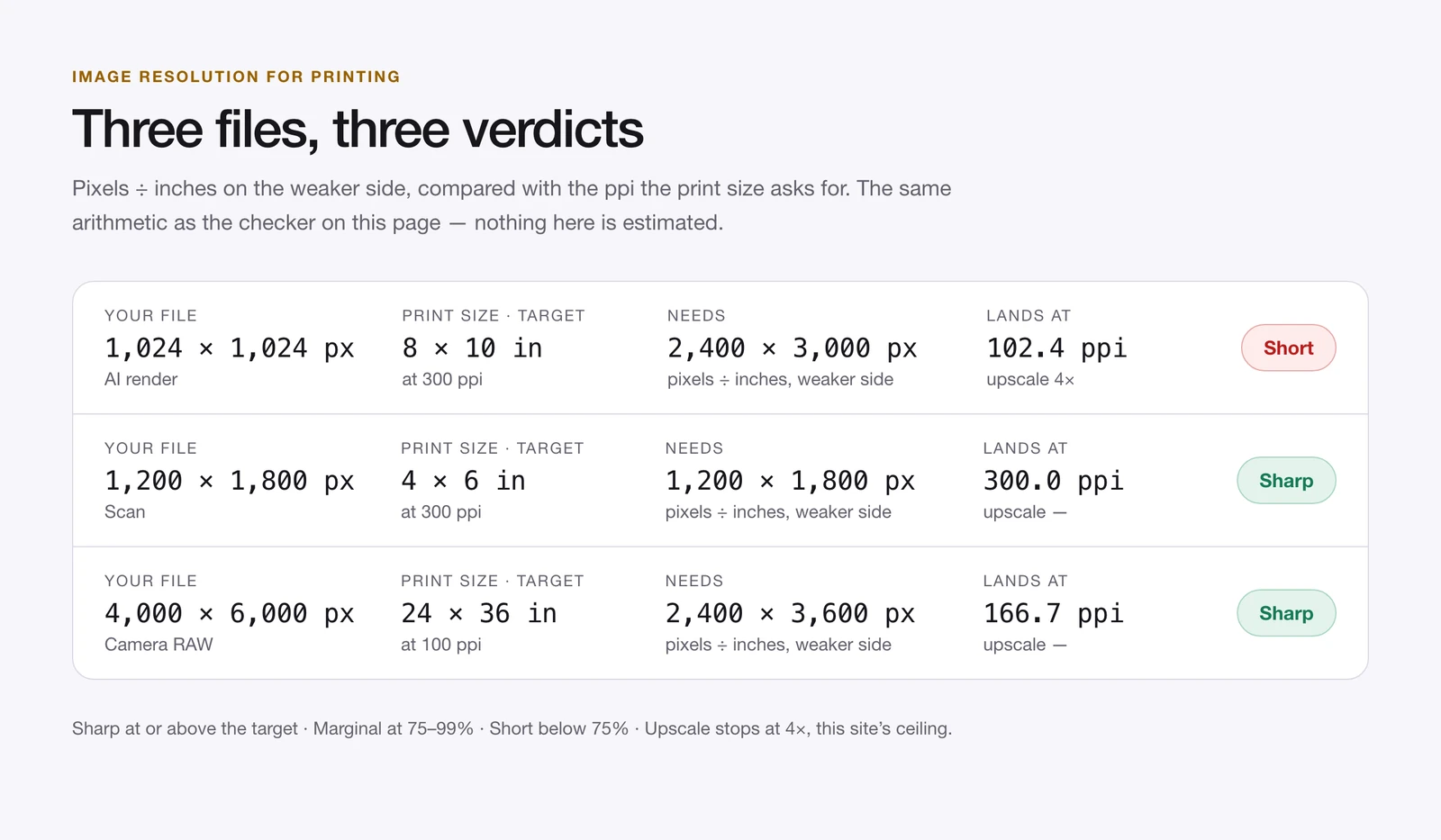
Three files, three verdicts
A 1,024 × 1,024 AI render, printed at 8 × 10. This is the common case now, because image models return around a megapixel. At 8 × 10 the file lands near 102 ppi — short. One 4× upscale reaches 4,096 pixels, which covers 8 × 10 at 300 after cropping the square to 4:5. That is the smallest scale that works, and it is where most people should stop.
A 1,200 × 1,800 scan, printed at 4 × 6. Exactly 300 ppi on both axes at 4 × 6, so no resampling is needed. Pushed to 8 × 10 the same file needs 2,400 × 3,000: 2× gets there, but the check will price it honestly as an interpolation, not as recovered detail.
A 4,000 × 6,000 camera file, printed at 24 × 36. At 24 × 36 the effective resolution is about 167 ppi. That fails a 300 target and passes a 150 one, which is why the print method input matters as much as the file: this is a fine large-format print and a marginal hand-held one.
When upscaling rescues a short file, and when it cannot
If the verdict says short, the honest options are three: print smaller, use a file that already has the pixels, or reconstruct detail with a model. Only the third is something this site can do for you, and it has limits that the tool states before you run it.
Reconstruction works on texture, edges and grain. When a file is short of the target by one scale step, the AI upscaler is usually enough, and it tops out at 4× per run because that is where the model still has evidence to work with rather than invention. Above that, artefacts compound: repeated patterns drift, skin gains a smoothness that reads as plastic, and lettering turns into plausible shapes.
Three cases the check should talk you out of:
- Text, logos and labels. A sign in the background of a photo, or a product label, should come from the design file, not from a model guessing letterforms. Reshooting or re-exporting is cheaper than fixing an invented apostrophe.
- Evidence. A plate number, a document, a frame used to prove something. An upscaled version is a reconstruction; presenting it as the original is the one use this site refuses.
- Blur, not smallness. Motion blur and missed focus are not resolution problems, and upscaling them produces crisp edges around soft content. The pixelation guide covers the re-saved and over-compressed variant of that problem, where blocky artefacts are the thing being repaired.
When a file is genuinely short and you do decide to upscale, run the 100% crop check before you order the print — the checks that catch an over-eager upscale are laid out in the upscaling guide, including the ones that only show up at full size.
One cost note, because it affects the decision: an upscale is a light edit in the workspace and a print-size file is usually one scale step, so the run does not need a multi-step pipeline. Credit costs for each outcome class are on the pricing page.
Frequently asked questions
What resolution should an image be for printing?
300 pixels per inch at the final size for anything held in the hand: 2,400 × 3,000 for 8 × 10, 2,480 × 3,508 for A4. Canvas, posters and banners are usually accepted at 100–150 ppi because they are viewed from further away.
Does setting the file to 300 DPI make it print sharp?
No. Changing the DPI field without resampling only changes the print size the file is assumed to fill. The pixel count is what decides sharpness, and the check above starts from pixels.
Is DPI the same as PPI?
Not exactly. PPI describes the pixels in a file against an inch; DPI describes the dots a printer lays down. Print labs say DPI when they mean what your file needs. The figure that matters in both cases is pixels ÷ inches.
My file says 72 DPI — is it unusable?
Usually not. A 6,000-pixel photo tagged 72 DPI prints a 20-inch wide image at 300 ppi. Trust the pixel dimensions, not the tag.
How many pixels is A4 at 300 DPI?
2,480 × 3,508. At 150 it is 1,240 × 1,754, and at 100 it is 827 × 1,169 — enough for a poster read from a couple of metres, not for a page read in the hand.
Should I include bleed in the size I check?
Yes, when the print runs to the edge. Add the bleed your printer asks for — commonly 0.125 inch per side — to the trim size first, then check that larger figure.
Next step
If the verdict came back sharp, send the file as it is; resampling a file that already meets the target only adds softness. If it came back short, decide between printing smaller and one reconstructing pass in the image upscaler above, and keep the original until the 100% crop passes.