Guides
ChatGPT Images 2.5: Sunburst, Flare and AI Image Workflows
Sunburst is the GPT Image 2.5 model for precise edits; Flare is the fast one. See what each does in ChatGPT Images 2.5, when to use which, and the costs.
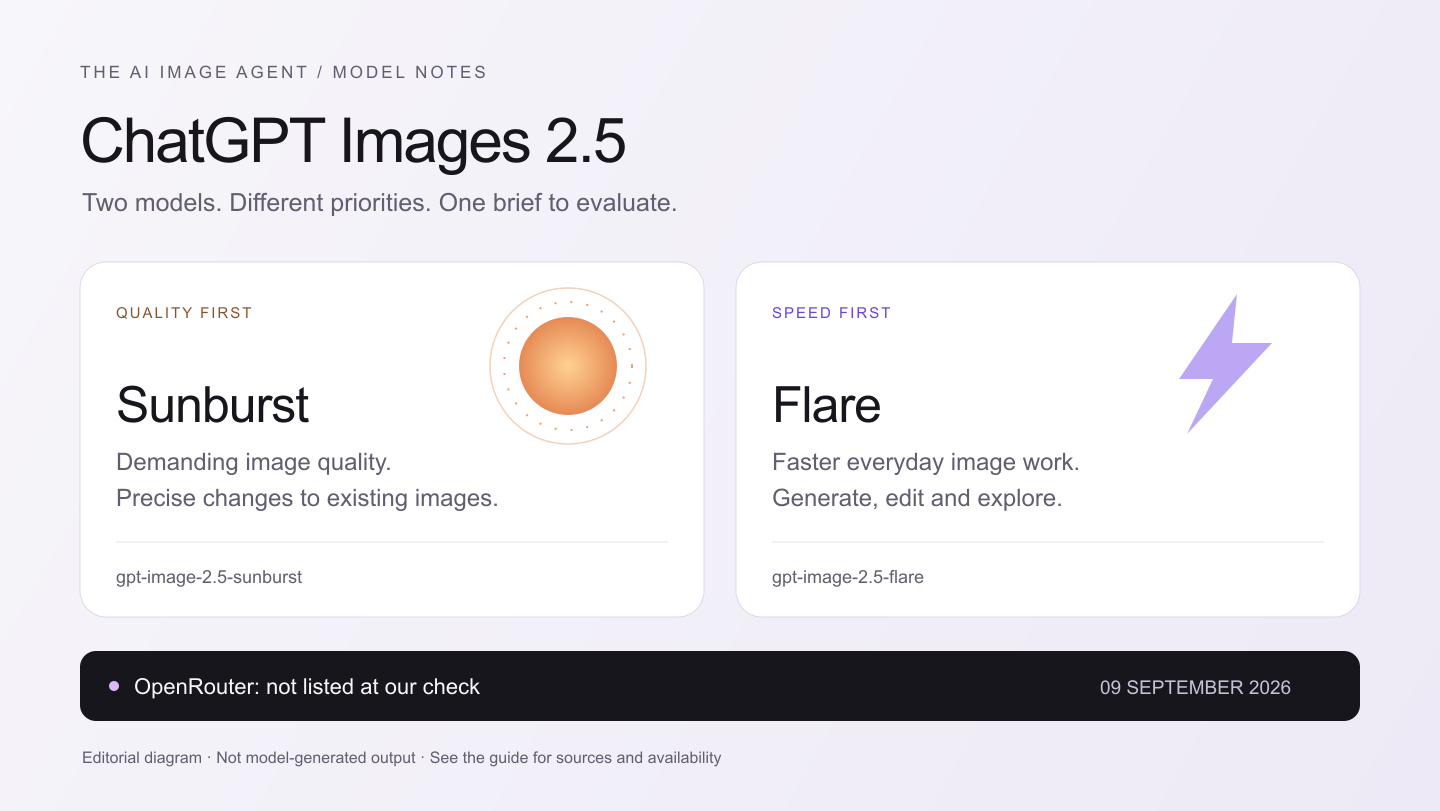
Looking for ChatGPT Images 2.5? OpenAI’s developer documentation names the underlying API family GPT Image 2.5, with two models: Sunburst and Flare. This guide explains their documented capabilities, where they fit into an image workflow, and how The AI Image Agent uses both of them now that they are live.
What is ChatGPT Images 2.5?
For API integration, the names to look for are gpt-image-2.5-sunburst and gpt-image-2.5-flare. Both take text and image inputs and return images. OpenAI lists dated snapshots from September 8, 2026. “ChatGPT Images 2.5” is the search phrase used in this guide; it is not an API model ID, and it should not be pasted into a provider request.
A new model can improve the step that creates or changes pixels. The surrounding product still has to understand your request, decide which operations are needed, show a price, save the result and let you continue editing. That distinction explains the role of The AI Image Agent: the workflow coordinates image tools around a goal. GPT Image 2.5 extends that workflow while leaving the review-and-confirm interaction intact.
Sunburst vs Flare: which model fits the task?
| Model | OpenAI’s positioning | A workflow to evaluate |
|---|---|---|
| GPT Image 2.5 Sunburst | Quality-focused generation and precise editing | A product scene where label placement and object shape need close review |
| GPT Image 2.5 Flare | Speed-focused everyday image generation and editing | Early visual directions before choosing one composition to refine |
The last column is our proposed evaluation plan, not a claim that either model has passed these tasks on this site. For a useful comparison, use the same input, brief, output dimensions and quality setting. Judge the required details first, then compare elapsed time and total billed cost. A fast result that needs three corrections may be less useful than a slower result that meets the brief immediately.
Documented capabilities and limits
OpenAI documents generation, image editing, subject preservation and transparent backgrounds for the 2.5 family. Quality options are auto, low, medium, high, xhigh and max. Custom dimensions are supported: edges must be multiples of 16, no edge may exceed 3,840 pixels, aspect ratio cannot exceed 3:1, and total pixels must be between 655,360 and 8,294,400. Outputs above 3,686,400 pixels are experimental. In this workspace the agent sets size and quality for you.
OpenAI offers an Image API for individual generation or editing requests and a Responses API image-generation tool for conversational workflows. Consult the official image-generation and prompting guides linked below for the current parameter rules.
For ecommerce work, evaluate label spelling, logo geometry, edge quality, shadows and colour separately. Those are acceptance criteria, not promises of perfect preservation. Describe the product scene in the image agent workspace to review the preparation, composition and export steps before anything runs. If a job only needs a clean cutout, the background removal guide may be the more direct starting point.
Prompt examples for generation and careful edits
These original briefs illustrate how we would evaluate the models. Write down the visible result and the details that matter before generating, so you have something concrete to check afterward. A pleasing image can still be the wrong result if the bottle shape or a required word has changed.
- Product edit: “Use the attached bottle as the subject. Replace the kitchen background with a pale stone tabletop and soft morning light. Keep the bottle silhouette, cap colour and every label character unchanged. Add a natural contact shadow. Do not introduce other products.”
- New composition: “Create a landscape editorial image of an unbranded orange glass vase beside folded linen. Place the vase in the left third, with empty space on the right for a headline added later. Use soft side lighting and a restrained cream background. No text or logos.”
- Follow-up edit: “Change only the background from cream to pale blue. Preserve the vase position, reflections, linen folds and crop. Keep the light direction consistent with the previous image.”
If you need help turning a rough idea into a brief, start with the image prompt generator. If you already have a visual reference, describe an image as a prompt to identify its composition, light and style. Review those descriptions before using them: they are a starting point for your direction, not a guarantee of an exact recreation. The worked image-to-prompt examples show how far a description gets you when a model regenerates from text alone.
How The AI Image Agent uses GPT Image 2.5
Since September 13, 2026, both models are live in the agent. You do not pick them: the agent chooses the model for each step, and mentioning the model in a prompt does not change that choice.
| Model in use | Used for | When the agent picks it first |
|---|---|---|
| GPT Image 2.5 Flare | New images | The image needs text in it, such as a journal page or a card, or the outcome costs 30 credits or more |
| GPT Image 2.5 Sunburst | Edits and combining reference images | The edit involves text, or the outcome costs 30 credits or more |
For other image work, the agent starts with the other models in use — Seedream 4 and Qwen Image for generation, FLUX Fill for edits to a selected area, and Clarity and ESRGAN for upscaling — and uses GPT Image 2.5 as a backup if a step fails. Choosing between the two models is one decision inside a larger one, which agentic image editing breaks into a testable list.
API pricing and AI Image Agent credits
OpenAI’s model pages currently list the same token rates for Sunburst and Flare. These are OpenAI API rates, not a fixed cost per image. The model documentation also cautions that the GPT Image 2 calculator does not estimate GPT Image 2.5 token consumption.
| Token category | USD per million tokens |
|---|---|
| Text input | $5.00 |
| Cached text input | $1.25 |
| Image input | $8.00 |
| Cached image input | $2.00 |
| Image output | $30.00 |
To illustrate the arithmetic only: 1,000 uncached text tokens, 2,000 uncached image-input tokens and 4,000 image-output tokens would cost $0.141 at those rates. These token counts are hypothetical, not a measured image request. They exclude any additional workflow costs. The same token price does not establish the same final cost across models, quality settings or reference images.
There is no separate GPT Image 2.5 credit rate. We price completed outcomes, so a run that uses Sunburst or Flare costs the same credits as the same result made with another model, and the quote covers generation, checks and a bounded allowance for retries. Because GPT Image 2.5 is billed by tokens, the agent chooses the quality level — low, medium or high — that fits the budget of the outcome you confirmed. A higher-cost setting never adds a charge afterward.
The existing image credit prices and subscriptions apply to every supported workflow. They are outcome prices, not per-model token prices. Planning and revising a plan are free of image-credit charges; paid Agent execution reserves the result’s credits when the run starts. Failed Agent runs return those credits under the current billing rules. The current plan card shows the proposed steps; use Pricing to check the published result rates.
How this connects to your current image workflow
You do not need a separate setting to use GPT Image 2.5: the agent chooses it inside the normal flow when a request needs it. An Agent plan needs an eligible signed-in subscription and enough credits to execute. Direct tools have their own allowances, which are shown in the workspace.
1. Describe the outcome
Open the workspace and explain the finished image. Specify what must change and what needs to stay the same.
2. Add a reference
Attach an image if the task needs one. Use your actual source so the plan can be grounded in the material you want edited.
3. Review and confirm
Read the proposed steps and check the result rates on Pricing. Use Change request to revise the plan, then Confirm and run when it is ready.
4. Check the result
Inspect the details you asked to preserve. Download the result or use Edit this result to start a follow-up request.
Start in the Agent editing workspace when the job involves several operations. For a finished composition that only needs larger dimensions, read the image upscaling guide. The useful choice is the workflow that gets your actual source to the required deliverable with a reviewable scope and price.
Questions about ChatGPT Images 2.5
- Is GPT Image 2.5 live here? Yes. Both Sunburst and Flare have been in use in the AI Image Agent since September 13, 2026.
- Can I select Sunburst or Flare manually? No. The agent uses Flare for new images and Sunburst for edits when a request needs text in the image or the outcome costs 30 credits or more, and uses them as a backup when another model fails.
- Is GPT Image 2 the same model? No. GPT Image 2 is the previous family; the agent uses the 2.5 models, Sunburst and Flare.
- How many credits will a 2.5 image cost? The same as the outcome you confirm. The agent keeps GPT Image 2.5 within that outcome’s budget by choosing the quality level.
- Are the cover image and prompts benchmarks? No. The cover is an editorial diagram, and the example prompts are proposed test briefs. No GPT Image 2.5 sample output is presented here.